Project Time Tracking & Project Bookings
Project Time Tracking Made Easy. Manage Workload Precisely.
Track project time directly when logging your working hours – whether in the office or working from home. With Emplovia's project time tracking, you get a clear overview of all project bookings and can analyze resource usage in real time. Less admin, more transparency for teams and project leads.
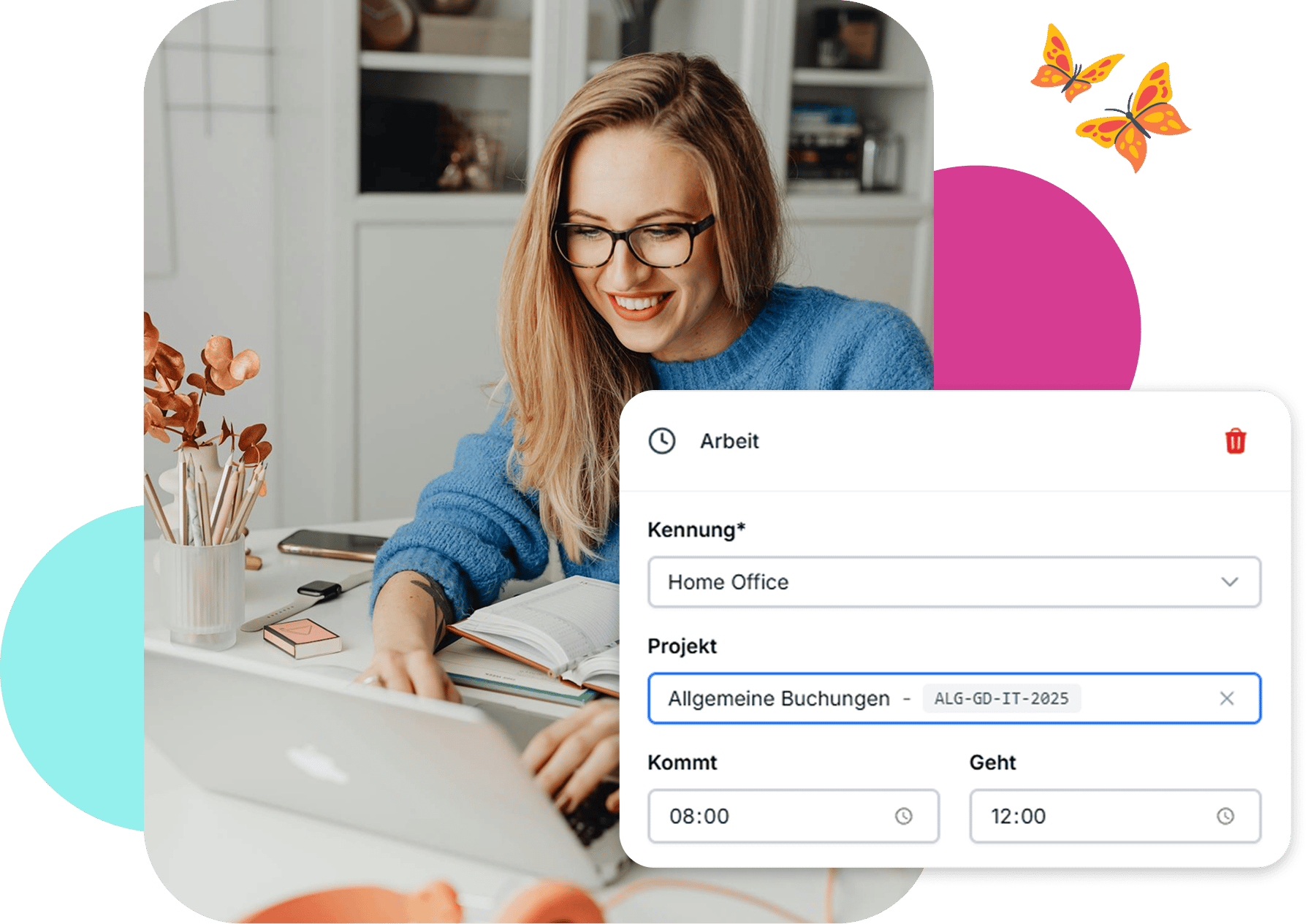
Track Project Hours Efficiently
- Assign Projects to Every Booking
Select the relevant project when logging your working time. The entry is automatically linked to the chosen project – ideal for parallel projects and changing tasks.
- Flexible Project Management
Create and manage projects centrally in Emplovia. Assign project names, link cost centers, and define project periods. Optionally, you can restrict projects to specific teams or departments.
- Reporting & Export
All project bookings are clearly displayed. Export your data as CSV or JSON whenever you need to – perfect for further analysis or custom reporting.
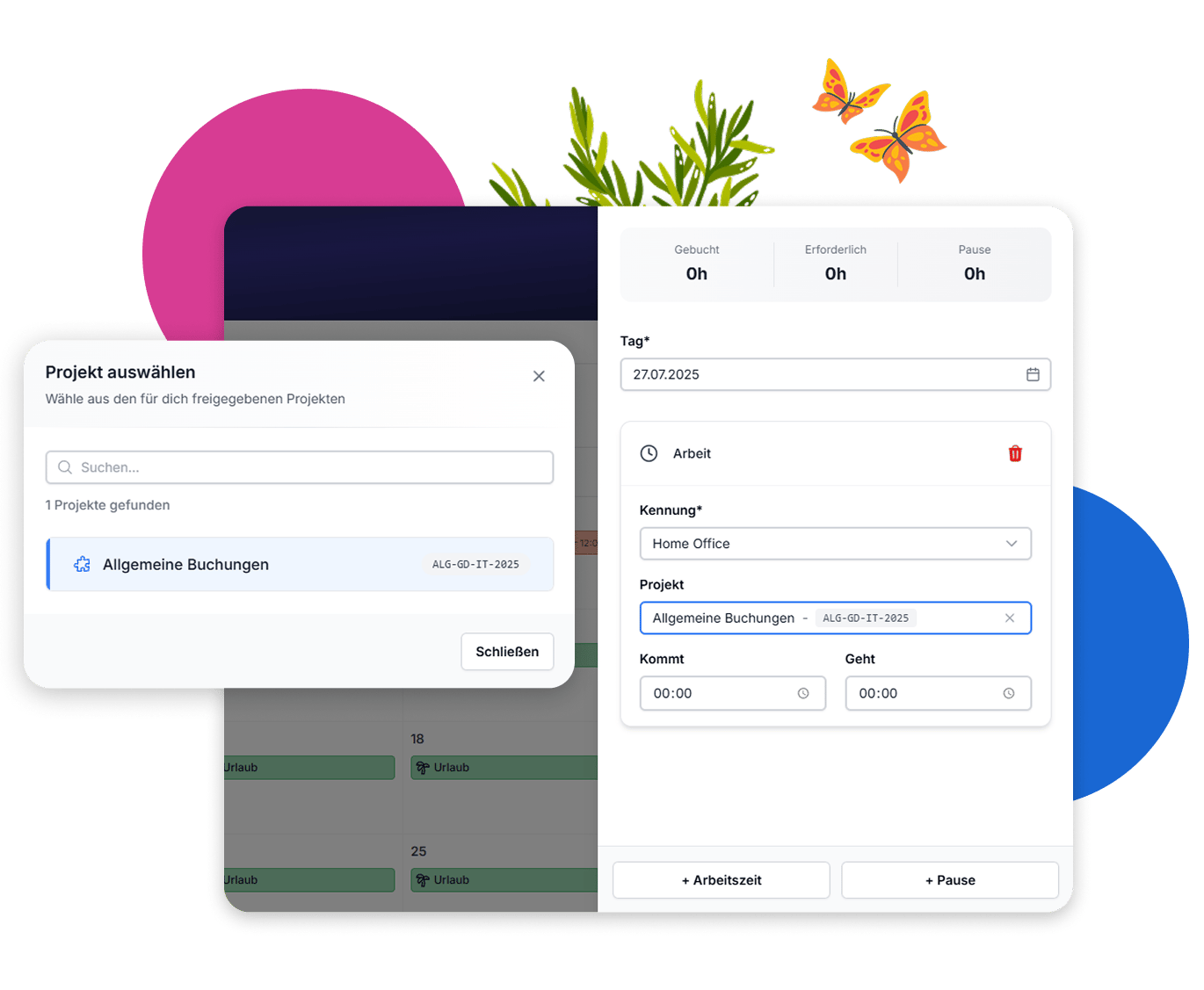
Project booking directly in the time tracking dialog
When recording attendance times, you can – if projects are enabled and available – directly select the appropriate project. Each entry is clearly assigned and remains traceable at the project level. Subsequent changes are possible if you have the necessary permissions.
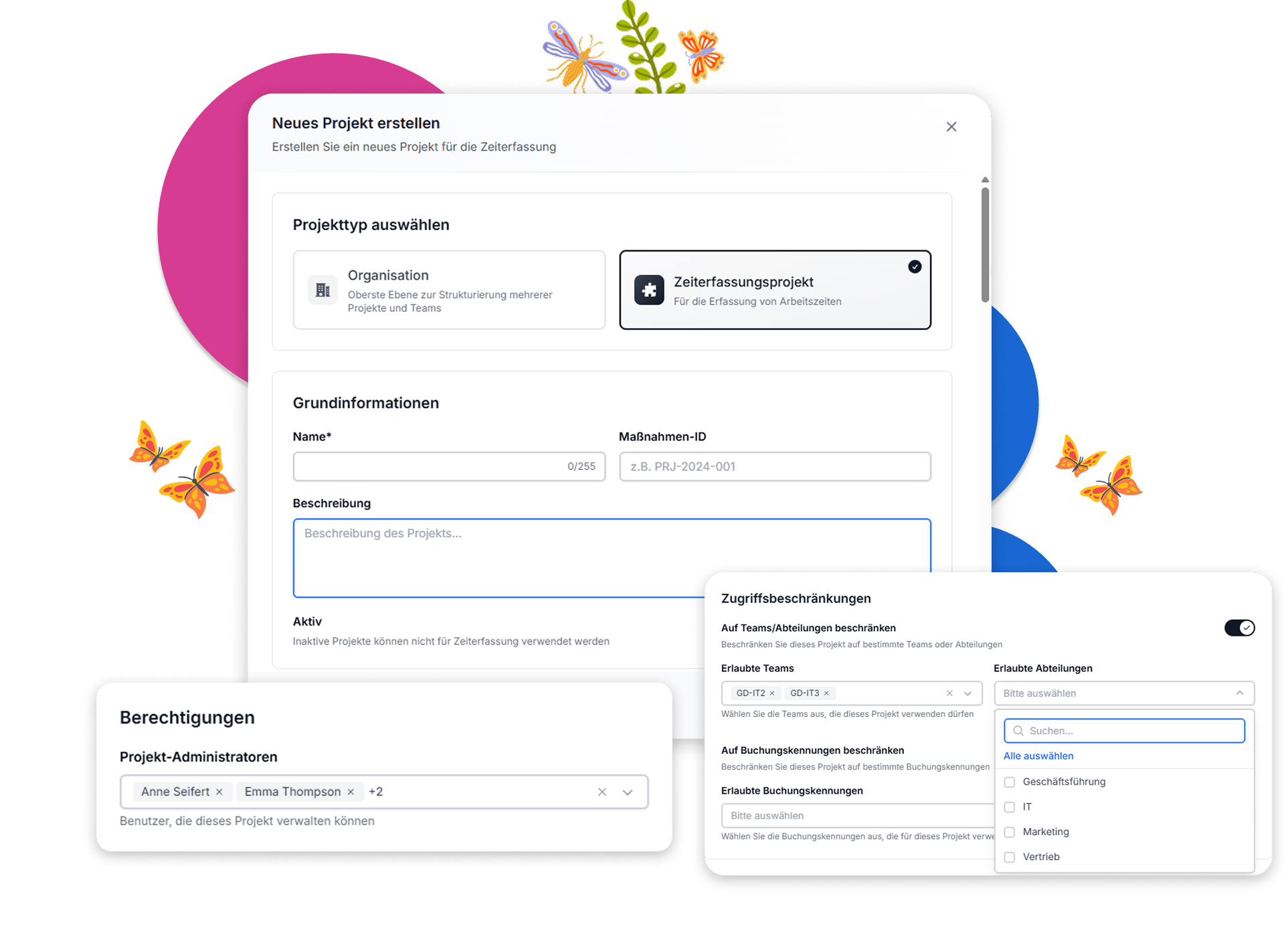
Precisely manage and assign projects
Create projects and assign project administrators with access to detailed project information. Define a budget and control exactly which employees, teams, or departments can book time to the project. You can also specify the time period in which bookings are allowed.
Keep all relevant projects in view with the central dashboard
Keep track of the status, durations, and time budgets of your projects at any time. The dashboard also shows who has booked how much time on each project – including approved and pending bookings. This enables you to manage resources effectively and identify bottlenecks early on.
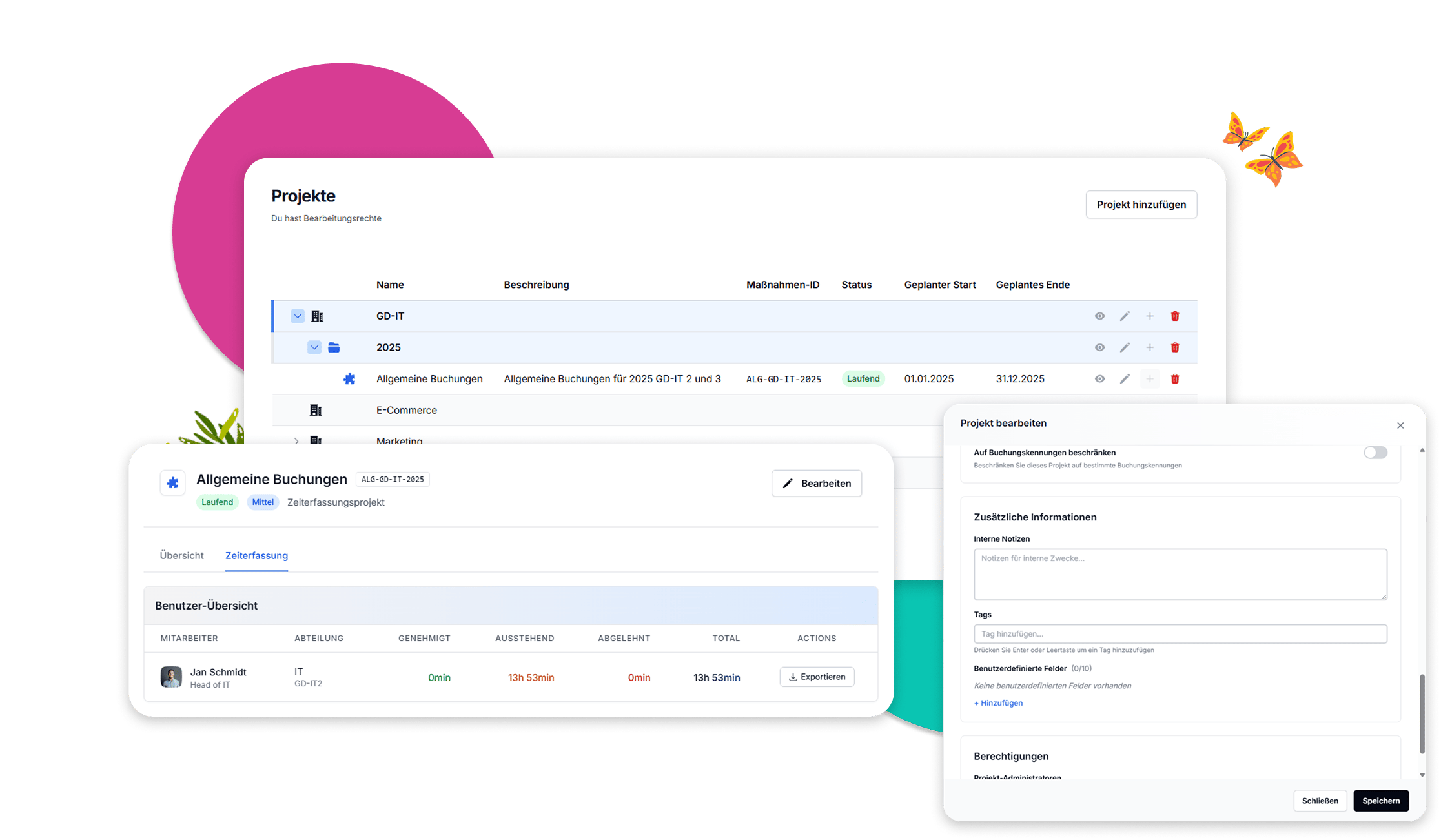
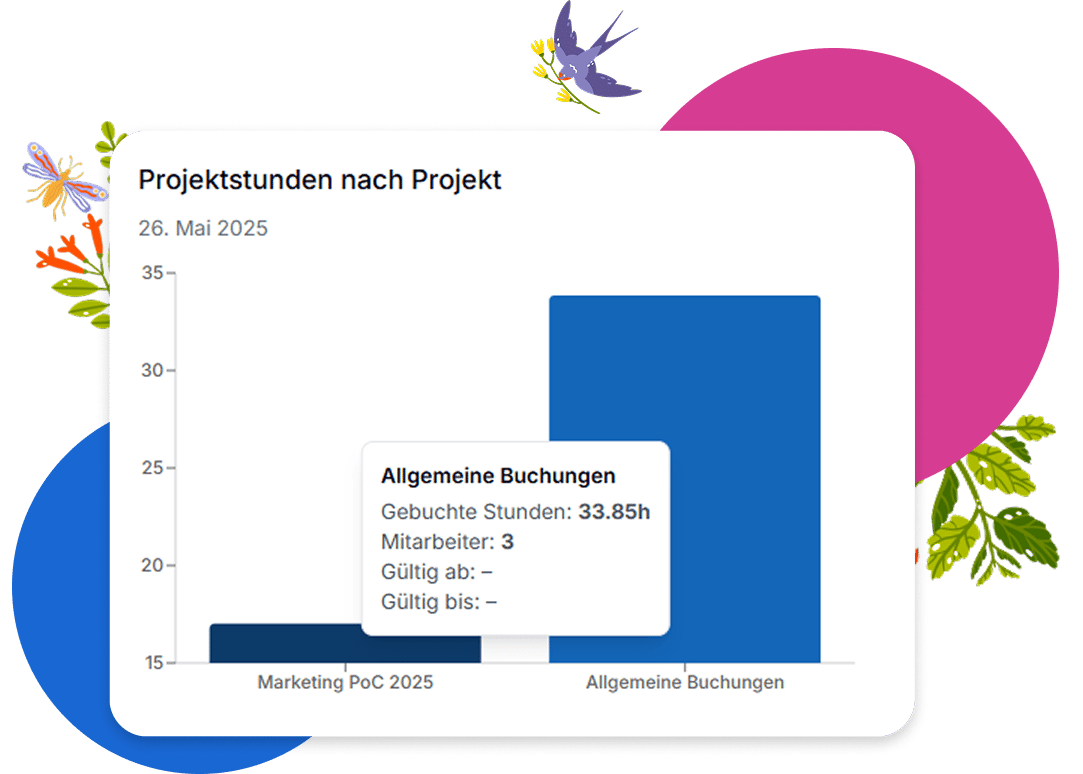
Insightful project reporting
Use the extensive analytics in the dashboard to analyze resource usage per project or cost center. This allows you to detect bottlenecks early and manage your projects efficiently – always based on up-to-date time tracking data.
Frequently Asked Questions About Project Time Tracking
You can only book time to a project if the project has been explicitly shared with you. Additionally, the selected time entry type must be configured to allow project booking, either as optional or mandatory. If both conditions are met, you can select a project during the online time tracking process.
Whether a project assignment can be changed retroactively depends on the settings of the underlying working time model. If time entries are editable in that model, project assignments can also be adjusted later. All changes are logged in the booking history.
To manage a project, you need either read or write permissions for project management. In addition, you must be either an administrator or the person who originally created the project. Each project defines who is assigned as project administrator. Only those with this role can see the project in the dashboard and access settings or reporting.
Yes, you can assign individual time entries to different projects. This is useful if you work on multiple projects within one day. Reports show all bookings per project in detail.
You can view all project-related reports in the Analytics dashboard, as well as directly in the project settings. The dashboard provides cross-project time analyses, while each project shows booked hours and the proportion already approved. Access is only available if you have permission to view the respective project.
A project typically contains fields such as name, cost center(s), responsible persons, active period, description, and status. Access can also be restricted to specific teams, departments, or individuals. Additionally, you can define which time entry types (booking identifiers) are allowed for the project. This ensures project availability is managed precisely and role-based.
You can also use the time tracking feature without assigning any projects. In that case, the time entry type you select must be configured without project booking. This is centrally defined in the system. As soon as a time entry type has project booking disabled, the project selection field is hidden during time entry.

Experience Emplovia in Action
Try Emplovia free for 14 days – no commitment, no credit card required.